Is my microphone recording uploaded?
No. Audio is recorded and processed in your browser. Report measurements are sent to MicProbe for assessment, and Premium can save reports and notes to your account. Saved reports do not include audio. Download the recording before leaving if you want to keep it. Read the privacy policy.
How many free tests can I run?
2 tests a day without an account, or 5 a day with a free Google account. Lifetime Premium includes unlimited tests. Each test lets you record, listen back and get a short result.
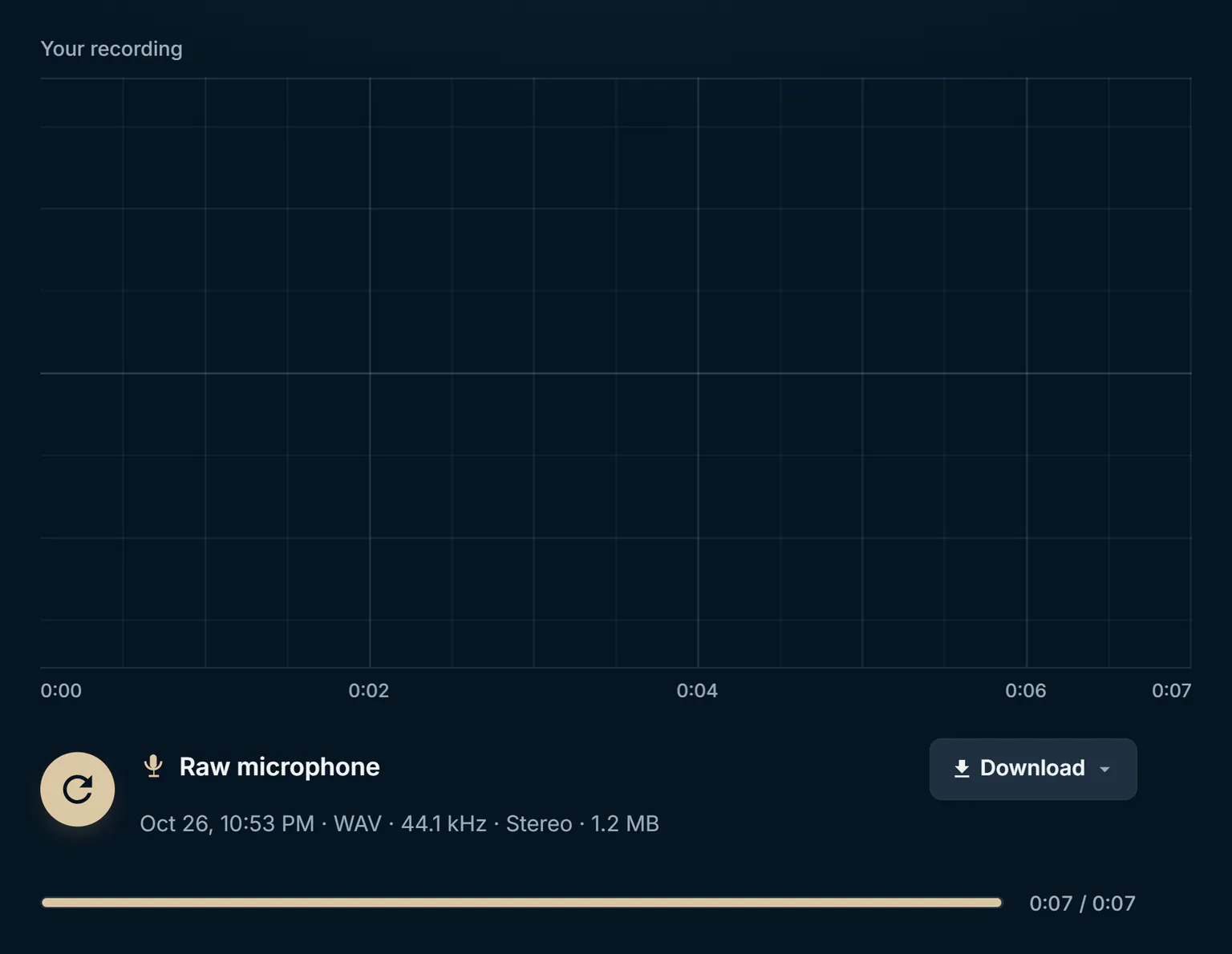
A free account’s 5 tests include guest tests already completed that day. Limits reset every day at midnight UTC; the app shows that time in your own time zone. Failed or insufficient recordings do not count, but once the reading has started a test counts, even if you stop it or switch to another tab or app. Listening to or downloading an existing recording does not use a test. The Raw recorder saves a recording without a test, so it has no daily limit.
Without an account, each browser on an internet connection gets 2 tests a day, and everyone on that connection shares a total of 20. If your browser blocks the storage needed to recognize it, the whole connection shares 2. Signing in gives each account its own daily allowance.
Does this test the actual Zoom, Discord or other app?
No. Each test approximates an app’s audio processing locally in your browser. It does not connect to the actual calling app or measure what the other person hears. A call test also checks your connection with a sample voice, not yours, sent through a nearby server and back, not through the app’s own servers.
For the app’s own microphone check, follow our guide for Zoom, Microsoft Teams, Google Meet, Webex, Discord, WhatsApp or Telegram.
Which microphones can I test?
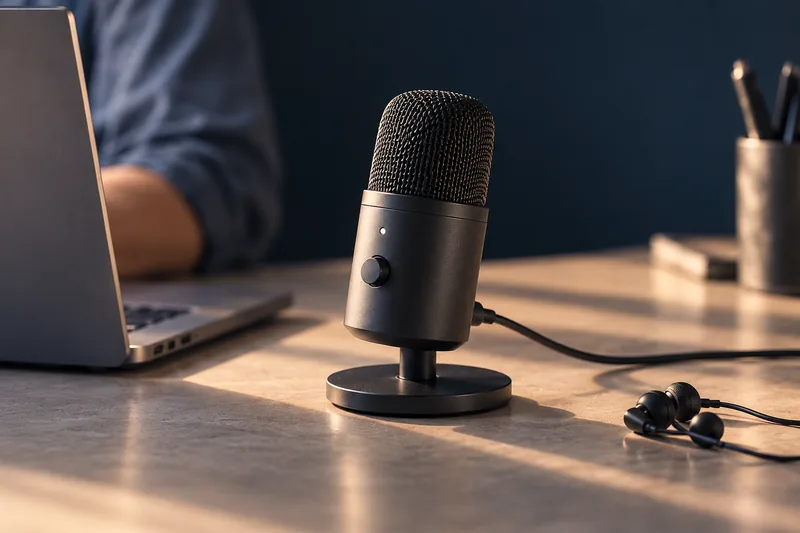
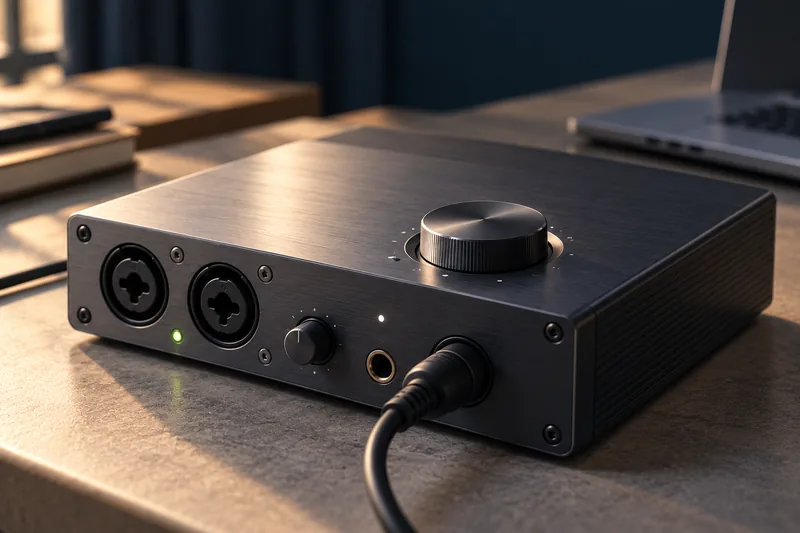
Any microphone your browser lists: a built-in microphone, a USB microphone, a headset, wireless earbuds or a microphone connected through an audio interface. Connect your device before you start, then choose its input in the microphone list. Some phones offer only their default input, and your browser and your app may pick different microphones.
Why Bluetooth microphone sound can change
People say I sound bad on calls. Can MicProbe show why?
A test checks your side: whether your level is too low or too high, whether the sound clips, how much background noise there is and whether your voice sounds narrow, like a phone call, as it can through a Bluetooth headset. A test for an app approximates that app’s settings in your browser. It cannot see the call itself or the other person’s device, so problems there do not show in your result; a call test checks your connection only as far as a nearby server. If every check here ran and none found a problem, the next place to look is the app’s own audio settings: which microphone it uses and how it handles noise.
Why a clear browser recording can still sound bad in a call
If your own recording sounds muffled or noisy too, read why a microphone sounds muffled or what causes static, buzzing or crackling.
My microphone doesn’t work in the browser. What can I check?
Allow microphone access in your browser’s site settings, then press the refresh button (the circular arrow) beside the microphone list. The Input level switch shows whether any sound comes through, without using a test. Check that the correct microphone is selected and that it is not muted on the device or in your operating system. If it is busy, close the other app using it and try again.
If sound comes through but is too quiet or keeps cutting out, read why a microphone sounds too quiet or why a microphone keeps cutting out.
Can I use a phone or a different browser?
Yes. Use a current browser with microphone access enabled, on a phone, tablet or computer. If a test cannot run, try an up-to-date desktop Chrome or Edge browser.
Available devices, recording formats and sound processing depend on the browser and operating system, so results can differ between browsers; some phones expose only the default input. An app’s built-in browser, such as the one that opens a link in Instagram or TikTok, often blocks the microphone: open the page in Safari or Chrome instead. For now, listening to the difference, the Premium comparison of your voice with and without app-like sound processing, works only on Windows computers, in Chrome, Edge, Opera or Firefox. Macs and Linux computers have not been checked yet; phones, tablets and Safari cannot record the two versions at once.
What does Premium add, and how do I access it again?
Premium explains what each result means by weighing the findings together, showing which changes the evidence supports and what remains uncertain. It also includes the measurements and unlimited tests to compare each change. It is a single payment with no renewal; sign in with the same Google account to return to your saved reports and purchase.
Your free result includes your estimated speech quality out of 10 and a short summary of what the test found. Premium also includes PDF downloads and saved reports. Listening to the difference, your voice with and without app-like sound processing, is Premium too; for now it works only on Windows computers. Premium does not guarantee a diagnosis or add measurements the test could not make.
Open your full result to request an additional explanation. These requests have a separate daily limit per account; the full result shows your account’s limit. Reopening an existing explanation does not use another request. The report’s measurements and steps remain available if an explanation cannot be prepared.
What can I save to my account?
Premium saves report measurements and notes to your account. Signing in does not automatically save earlier guest results; with Premium, you can choose to save the current report. Download audio separately before leaving the page; recordings are not stored in your account.
Your account keeps your latest 200 reports within 10 MiB. Older reports are removed automatically when a new report or an explanation needs room. Download a PDF if you want to keep a separate copy. View terms.